
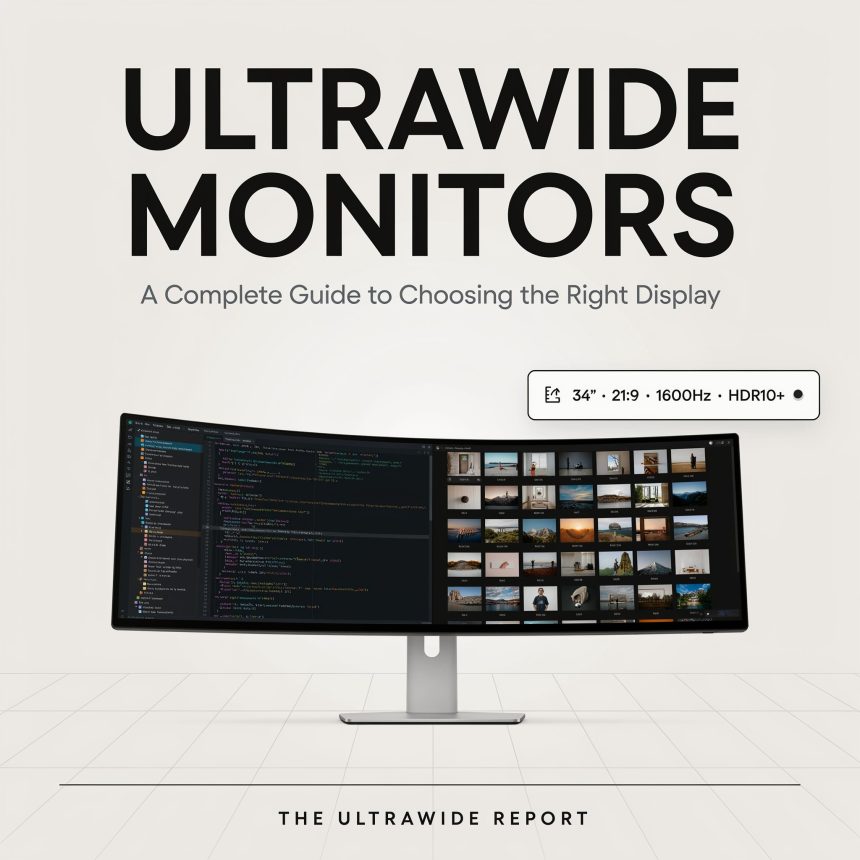
Imagine replacing two ordinary screens with one wide display that gives you plenty of room to work, browse, watch, and create. That is the main appeal of an ultrawide monitor. Instead of constantly switching between windows or arranging multiple displays, you can keep more of your work visible at once.
But is a wider display really the right choice for everyone? Not necessarily. Different sizes, resolutions, refresh rates, panel types, and connectivity options can make the buying process confusing. The ideal choice largely depends on how you use your computer and the features you expect from your display.
This guide explains the important features in simple terms so you can understand what matters before making a purchase.
What Is an Ultrawide Monitor?
An ultrawide monitor is a display with a wider aspect ratio than the traditional 16:9 format found on many standard computer screens. The extra horizontal space gives you more room for applications, documents, timelines, websites, and other content.
Many models use a 21:9 aspect ratio, although wider formats are also available. The exact size and resolution can vary considerably.
The easiest way to picture the difference is to imagine your desk as a workspace. A standard monitor gives you one large sheet of paper, while an ultrawide model gives you a much longer sheet. You can spread your work across the screen instead of stacking everything on top of one another.
This extra space can be particularly useful for multitasking. You can keep a browser, document, and another application open side by side, making it easier to manage multiple tasks at once.
Why Are Ultrawide Displays Becoming Popular?
One major reason is convenience. Modern computer users often work with several applications at the same time. Switching between windows repeatedly can interrupt your concentration.
A wider display can reduce that problem by allowing multiple windows to remain visible.
Better Multitasking
If you regularly compare documents, monitor information, manage spreadsheets, or communicate while working, additional horizontal space can be extremely useful.
You can resize windows and arrange them side by side according to your workflow.
Less Dependence on Multiple Screens
Some people use two or three monitors to create a larger workspace. A single wide display can provide a similar experience without a visible gap running through the middle.
That can create a cleaner appearance, especially if you prefer a minimalist desk.
More Immersive Entertainment
A wider format can also make compatible movies and games feel more immersive. Supported content can fill more of your field of view, creating a broader visual experience.
However, not every game or video uses the entire width, so compatibility should be considered before buying.
Choosing the Right Screen Size
Screen size is one of the first things you should consider. Ultrawide displays come in different dimensions, and bigger is not automatically better.
A smaller model may fit comfortably on a compact desk, while a larger display requires more physical space and a suitable viewing distance.
Desk Space Matters
Before buying, measure the available width and depth of your desk. Remember to account for the stand, cable placement, speakers, and other accessories.
You should also consider how far you normally sit from the screen. A very large display placed too close can require frequent head movement, which may become uncomfortable during long work sessions.
Common Size Categories
Smaller ultrawide screens can be practical for everyday office tasks and limited workspaces. Mid-sized models provide a balance between workspace and physical dimensions. Larger versions are aimed at people who want a highly immersive experience or substantial room for multitasking.
The ideal size is ultimately determined by your desk, viewing distance, and personal preference.
Resolution and Image Quality
Resolution refers to the number of pixels that make up the images and text you see on the screen. More pixels can provide greater detail, provided the screen size and viewing distance are appropriate.
You may encounter resolutions such as 2560 × 1080, 3440 × 1440, and higher options.
A higher-resolution display generally gives you more detailed images and additional workspace. However, it can also place greater demands on your computer, particularly when playing demanding games.
Why Pixel Density Matters
Two screens can have the same resolution but different physical sizes. The larger screen may spread those pixels over a greater area, while the smaller one can appear sharper at the same viewing distance.
For productivity, a clear and comfortable image is often more important than simply choosing the largest resolution available.
Refresh Rate and Response Time
Refresh rate refers to how many times a monitor refreshes the image on the screen each second, measured in hertz (Hz).
A higher refresh rate can make on-screen motion look noticeably smoother and more fluid. This is particularly noticeable when scrolling quickly, moving windows, or playing games.
For General Use
If you mainly browse websites, write documents, manage email, and work with office applications, you may not need an extremely high refresh rate.
For Gaming
Gamers may benefit from a higher refresh rate because fast-moving scenes can appear smoother. The computer’s graphics hardware also needs to produce enough frames to take advantage of that capability.
Response time is another specification you may see. Response time measures how quickly a pixel can change from one color or state to another. A lower response time can help minimize motion blur and ghosting during fast-moving scenes.
Rather than focusing on one specification alone, consider the display as a complete package.
Panel Types and What They Mean
The type of panel used in a display can significantly influence color accuracy, contrast, viewing angles, and overall motion performance.
IPS Panels
IPS technology is widely appreciated for strong viewing angles and consistent color reproduction. It can be a good choice for office work, creative tasks, and general use.
VA Panels
VA panels are often known for strong contrast and deep blacks. They can be appealing for movies, games, and users who enjoy a more pronounced difference between dark and bright areas.
OLED Displays
OLED technology delivers deep, rich blacks by allowing individual pixels to switch off completely when displaying dark areas. This can create impressive contrast and a highly immersive image.
OLED displays can also be more expensive, and buyers should understand factors such as long-term usage patterns and manufacturer guidance before choosing one.
There is no single panel technology that is perfect for every person. Think about whether your priorities are color, contrast, motion, price, or a combination of these factors.
Curved vs. Flat Designs
Many ultrawide displays have a curved screen. The curve is designed to bring the outer edges slightly closer to your natural field of view.
For a very wide display, this can make the screen feel more consistent from the center to the edges.
Benefits of a Curved Screen
A curved design can provide a more immersive viewing experience and may feel natural when you are sitting directly in front of the display.
It can also make a large screen feel less visually stretched at the edges.
When Flat May Be Better
A flat display may be preferable if you frequently work with precise lines, layouts, or content where geometric accuracy is important.
It can also be easier to position alongside another flat screen.
Your preference matters here. If possible, viewing both designs in person can help you understand which feels more comfortable.
Using an Ultrawide Monitor for Work
For many people, productivity is the biggest reason to choose a wide display.
Instead of maximizing one application at a time, you can keep several programs visible.
Office Work
You can place a document beside a browser, messaging application, or reference material. This can reduce the need to repeatedly switch between windows.
Spreadsheets
The extra horizontal room can be useful when working with wide tables containing many columns.
Video Editing
Editors often work with timelines that stretch horizontally. A wider display can provide more room to see clips and controls without constantly zooming in and out.
Programming
Developers can place code, documentation, terminals, and other tools next to one another. The exact arrangement depends on the workflow and software being used.
The important advantage is flexibility. You decide how to divide the available space.
Gaming and Entertainment
Gaming is another area where a wide display can make a noticeable difference.
Compatible games can show a broader view of the environment, allowing you to see more of the scene at once.
For racing games, simulation titles, and other immersive experiences, the additional horizontal space can make the display feel more expansive.
However, support varies from game to game. Some titles may not fully support wider aspect ratios, while others may require specific settings.
Graphics Hardware Matters
Higher resolution and higher refresh rates require more graphical processing power.
If your computer is not powerful enough, you may not get the performance you expect. Before purchasing a high-resolution gaming display, check whether your graphics hardware can comfortably handle the resolution and refresh rate you want.
For casual gaming, these requirements may be less demanding. For competitive gaming, performance considerations become more important.
Connectivity and Useful Features
A display is more than just a panel. The ports and built-in features can affect how convenient it is to use.
Common connections include HDMI and DisplayPort. Some models also provide USB ports for accessories.
USB-C Connectivity
Certain displays include USB-C, which can be particularly useful with compatible laptops. Depending on the monitor and computer, a single cable may handle video, data, and power.
However, USB-C capabilities vary, so check the specifications carefully rather than assuming every USB-C port works the same way.
Built-In Speakers
Some displays include speakers. These can be convenient for basic audio, although dedicated speakers or headphones may provide a better listening experience.
Adjustable Stands
A height-adjustable stand can make a major difference in comfort. Tilt and swivel adjustments can also help you position the display correctly.
If the included stand does not meet your needs, check whether the monitor supports a compatible mounting system.
Ergonomics and Eye Comfort
You may spend several hours looking at your display, so comfort deserves serious attention.
Position the screen so you can view it without constantly bending your neck or raising your shoulders.
The top portion of the display should generally be positioned around a comfortable eye level, although the ideal setup varies between people.
Brightness and Room Lighting
A display that is much brighter than the surrounding room can feel uncomfortable. Adjust brightness according to your environment rather than simply using the highest setting.
You should also avoid placing the screen where strong reflections make it difficult to see.
Take Regular Breaks
Even with a comfortable display, staring at a screen for hours without breaks can be tiring. Look away from the screen regularly and give your eyes a chance to relax.
A good monitor is only one part of a comfortable workstation.
What Should You Consider Before Buying?
With so many models available, it helps to create a simple checklist.
Start with Your Main Purpose
Are you buying it for work, gaming, editing, entertainment, or a combination of activities?
Your answer will determine which features deserve the most attention.
Consider Your Computer
A powerful display cannot compensate for hardware that cannot deliver the required performance. Check your computer’s graphics capabilities and available ports.
Measure Your Desk
Don’t underestimate physical dimensions. A display that looks reasonable online can feel enormous once it is sitting on your desk.
Set a Practical Budget
Decide how much you are comfortable spending before comparing features. This makes it easier to avoid paying extra for specifications that you may never use.
Think About Future Use
Your needs may change over time. If you expect to use the display for several years, consider which features might remain useful as your work or entertainment habits evolve.
Common Mistakes to Avoid
Buying a wide display can be exciting, but it is easy to focus too much on specifications.
One common mistake is choosing the largest screen without considering desk space or viewing distance.
Another is buying an extremely high refresh rate without having hardware capable of taking advantage of it.
Some buyers also overlook connectivity. A display may have excellent image quality but lack the ports required for their computer or accessories.
Don’t Ignore Comfort
A technically impressive screen is not very useful if its stand, height, viewing angle, or size makes long sessions uncomfortable.
Finally, don’t assume that the most expensive model is automatically the right one. Features should match your needs rather than simply increasing the price.
Is an Ultrawide Monitor Right for You?
The answer depends on your daily routine.
If you regularly multitask, manage wide spreadsheets, edit video, work with several applications, or enjoy compatible games, the additional space can be valuable.
If you mainly perform simple tasks on a small desk, a standard display may already provide everything you need.
The biggest advantage is flexibility. You can arrange your digital workspace in a way that feels natural instead of constantly switching between separate windows or displays.
Before making a purchase, think about how you work today and how you expect to use your computer in the future.
Conclusion
An ultrawide monitor can give your computer setup a completely different feel by providing a broad, uninterrupted workspace. From productivity and creative work to gaming and entertainment, the extra screen real estate can make many tasks more convenient.
However, choosing the right model requires more than looking at screen size. Resolution, refresh rate, panel technology, connectivity, ergonomics, and compatibility all deserve consideration.
Take a practical approach. Focus on the features that genuinely support your everyday activities, and choose a display that fits both your computer and your workspace.
FAQs
1. What is an ultrawide monitor used for?
It is commonly used for multitasking, office work, creative applications, gaming, entertainment, and other activities where additional horizontal screen space is useful.
2. Is an ultrawide monitor better than two monitors?
It depends on your preferences and workflow. A single wide display provides an uninterrupted workspace, while two separate screens can offer more flexibility for arranging independent applications.
3. Are ultrawide monitors good for gaming?
They can be excellent for compatible games, especially when immersion and a wider field of view are important. However, you should check game support and ensure your computer can handle the display’s resolution and refresh rate.
4. What size is best for an ultrawide monitor?
There is no single ideal size. Consider your desk dimensions, viewing distance, computer hardware, and how much workspace you need before choosing.
5. Does an ultrawide monitor need a powerful computer?
Not always. Basic office tasks can run comfortably on many computers, but high-resolution gaming and demanding creative applications may require stronger graphics hardware to deliver smooth performance.