

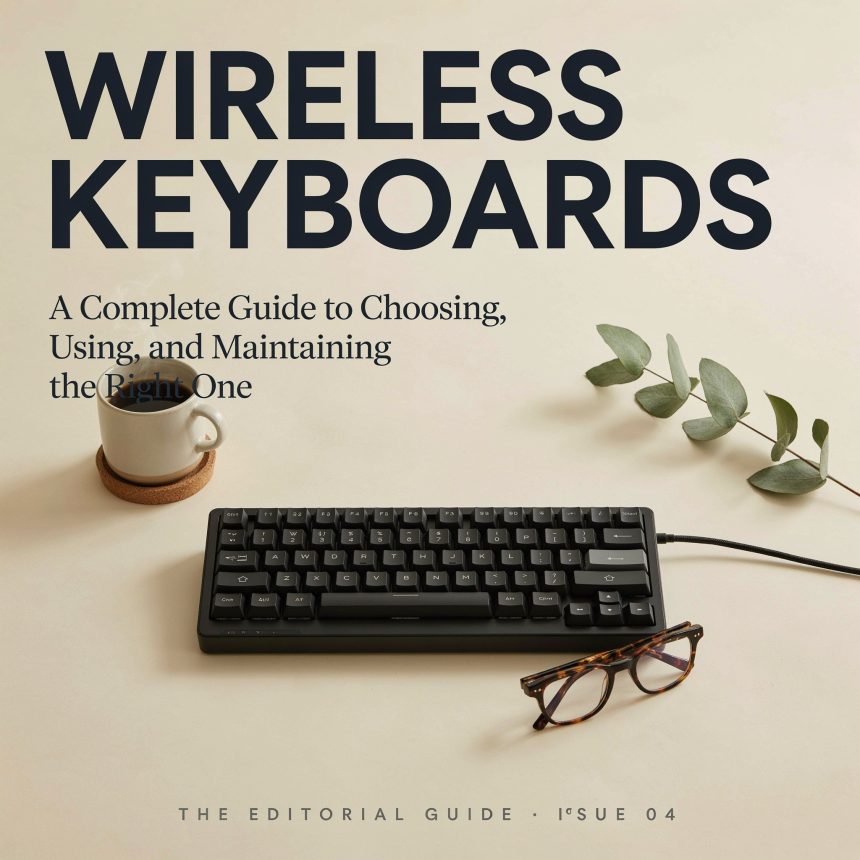
A good keyboard can make everyday computer use feel easier, faster, and more comfortable. Whether you work from home, study online, manage a business, enjoy gaming, or simply browse the internet, the keyboard is one of the devices you interact with most. Removing the cable can make that experience even more convenient.
Modern wireless keyboards come in many shapes, sizes, and designs. Some are compact enough to fit in a small bag, while others include a full number pad, ergonomic features, media controls, and rechargeable batteries. With so many options on the market, how do you choose the one that truly fits your needs and preferences?
This guide explains the important things to consider before buying one, from connectivity and battery life to comfort, compatibility, maintenance, and everyday performance.
What Is a Wireless Keyboard?
A wireless keyboard is an input device that communicates with a computer, tablet, television, or another compatible device without requiring a physical cable for data transmission.
Most models use either Bluetooth or a small USB receiver. Bluetooth connects directly to compatible devices, while receiver-based models usually require you to plug a tiny adapter into a USB port.
Think of the connection like an invisible bridge between the keyboard and your device. Instead of sending information through a cable, the keys communicate through a short-range wireless signal.
This design provides a cleaner workspace because there is no long cable running across your desk. It also gives you the flexibility to move the keyboard whenever you need extra space on your desk.
Wireless models are available for almost every type of user. Office workers may prefer quiet and comfortable keys, students may want something portable, and gamers may look for fast response times and specialized features.
Why Are Wireless Keyboards So Popular?
The biggest attraction is convenience. A traditional wired keyboard works perfectly well, but its cable can sometimes become an unnecessary limitation.
With a wireless model, you can position the keyboard wherever it feels comfortable. You might place it farther away from your monitor, move it closer when writing, or put it aside when watching a movie.
A Cleaner Workspace
Cable management becomes much easier when fewer wires are involved. A tidy desk can also make a small workspace feel larger.
For people using laptops with external monitors, wireless accessories can create a more organized workstation. Instead of having cables scattered around the desk, you can keep the setup simple.
Easy Portability
Many compact models are designed for travel. You can place one in a laptop bag and use it with a tablet or compatible computer whenever you need a larger typing surface.
Flexible Positioning
A cable does not determine where you have to sit. You can change the position of the keyboard according to your posture, desk arrangement, or activity.
Bluetooth vs. USB Receiver
One of the first decisions you will face is choosing between Bluetooth and a dedicated wireless receiver.
Bluetooth is particularly useful if you frequently switch between compatible devices. A keyboard can often be paired with laptops, tablets, and other equipment without occupying a USB port.
A receiver-based keyboard, on the other hand, usually offers a straightforward plug-and-play experience. You insert the receiver into a USB port and switch on the keyboard.
Bluetooth Advantages
- Convenient for modern laptops and tablets
- Doesn’t normally require a dedicated receiver
- Useful when USB ports are limited
- Often suitable for multiple-device setups
USB Receiver Advantages
- Simple connection process
- Useful for computers without convenient Bluetooth support
- Often provides a dedicated connection between the keyboard and receiver
- Can be convenient for desktop setups
Some products support both methods. These can be especially useful if you regularly move between different devices.
Before purchasing, check which connection methods your computer supports. Compatibility is more important than simply choosing the newest technology.
Understanding Keyboard Size and Layout
Not every keyboard has the same layout. Choosing the right size can make a noticeable difference in daily use.
A full-size keyboard generally includes the standard letter area, function keys, navigation keys, arrow keys, and a numeric keypad. It is useful for people who regularly enter numbers.
A tenkeyless design removes the number pad. This creates more desk space while retaining most of the familiar layout.
Compact keyboards go even further by reducing the overall footprint. They are useful for travel, smaller desks, and minimalist workstations.
Consider Your Daily Tasks
If you work with spreadsheets, accounting software, or large amounts of numerical data, a number pad may be valuable.
If you mainly write documents, browse websites, and communicate online, a smaller design may provide everything you need.
There is no universally perfect size. The right choice depends on how you actually use your computer.
Key Feel and Typing Comfort
Typing comfort is one of the most important factors, yet it is often overlooked.
Different keyboards produce different sensations when you press a key. Some feel soft and quiet, while others have a more noticeable click or stronger physical response.
Membrane Keyboards
These commonly use a flexible membrane beneath the keys. They are often affordable and can provide relatively quiet typing.
Mechanical Keyboards
Mechanical designs use individual switches beneath the keys. They can provide a more distinct typing experience and are available with different switch characteristics.
Low-Profile Models
These have shorter key travel and a slimmer overall design. Some people enjoy the quick, laptop-like feeling, while others prefer deeper keys.
Your ideal choice depends on personal preference. If possible, try several keyboard styles before making a long-term purchase.
Battery Life and Charging
A wireless keyboard is only convenient when its power system is reliable.
Some products use replaceable batteries, while others contain built-in rechargeable batteries. Both approaches have advantages.
Replaceable batteries can be useful because you can quickly install a fresh set instead of waiting for the device to charge.
Rechargeable models save you the hassle and ongoing expense of replacing disposable batteries. You simply connect a charging cable when the battery becomes low.
Battery life varies considerably.
It depends on the design, lighting, connection technology, usage habits, and power-management features.
Backlighting can consume additional energy, especially when it is bright and used continuously. If long battery life is your priority, look for a model with efficient power management and an appropriate battery capacity.
It is also worth checking whether the keyboard can continue working while connected to its charging cable. That feature can be helpful if the battery runs low during an important task.
Ergonomics and Everyday Comfort
A keyboard can affect how your hands, wrists, shoulders, and arms feel during long periods of computer use.
Ergonomic design attempts to make typing more comfortable by encouraging a more natural hand and wrist position.
Some models have a curved layout, split design, adjustable feet, or a built-in wrist rest. Others simply have a low and relatively flat profile.
Comfort Is Personal
A feature that feels comfortable to one person may feel strange to another. For example, a split keyboard may take some time to become familiar.
The most important thing is to avoid forcing your hands into an uncomfortable position. Keep your wrists reasonably relaxed, adjust your chair and desk height, and take regular breaks during long sessions.
Think of your keyboard like a pair of shoes. The specifications may look impressive on paper, but what matters most is how it feels when you actually use it.
Features That Can Make a Difference
Modern models often include additional features designed to improve convenience.
Backlighting
Illuminated keys can make typing easier in dim environments. Some models allow brightness adjustments, while others offer customizable lighting effects.
Media Controls
Dedicated buttons for volume, playback, and mute can save time when listening to music or watching videos.
Multi-Device Switching
Some keyboards allow you to connect to several devices and switch between them using a button or shortcut. This can be useful for people who work with a computer and tablet simultaneously.
Programmable Keys
Certain products let you assign specific actions or shortcuts to selected keys. This can be useful for repetitive tasks.
However, extra features should not automatically determine your purchase. A simple keyboard that feels excellent may be more useful than a feature-packed model you rarely use.
Wireless Keyboards for Work, Study, and Gaming
Different activities create different requirements.
For office work, comfort, quiet operation, reliability, and battery life may matter most. A full-size layout can also be helpful for spreadsheet work.
For students, portability and affordability can be more important. A compact design that works with both a laptop and tablet can be practical.
For creative professionals, precise typing and comfortable long-term use may be priorities. Additional shortcut keys can also be useful for certain workflows.
For gaming, responsiveness and consistent input become especially important. Some gaming-oriented wireless models offer low-latency connections, programmable controls, and customizable lighting.
The key point is simple: don’t buy based solely on the label. Think about the tasks you perform every day and choose features that support those tasks.
Compatibility: What Should You Check?
Before buying a keyboard, verify that it works with your intended devices.
Check the supported operating systems and connection methods. A keyboard designed primarily for one ecosystem may still work with another platform, but some special keys or functions may behave differently.
Also consider the available ports on your computer. If the keyboard requires a USB receiver and your laptop has very few USB ports, you may need an adapter or hub.
Tablet and smart-TV compatibility should also be checked carefully because not every device supports every keyboard feature.
Layout Matters Too
Keyboard layouts can vary between countries and regions. Key placement, symbols, and language-specific characters may differ.
If you frequently type in more than one language, make sure the physical layout and software support meet your needs.
How to Maintain Your Keyboard
Even an inexpensive keyboard can last for years when treated properly.
Dust, crumbs, skin oils, and other debris can gradually collect between the keys. Regular cleaning helps keep the device comfortable and functional.
Turn the keyboard off before cleaning it. Use a soft, dry cloth for the surface and follow the manufacturer’s cleaning recommendations for deeper maintenance.
Avoid pouring liquid directly onto the keyboard. If a spill occurs, disconnect or switch off the device immediately and follow the manufacturer’s guidance.
Protect the Battery
For rechargeable models, use appropriate charging equipment and avoid exposing the keyboard to extreme temperatures.
If you will not use the keyboard for a long period, follow the storage recommendations provided by the manufacturer.
Simple maintenance can prevent many common problems and extend the useful life of your device.
Common Problems and Simple Solutions
Wireless technology is convenient, but occasional connection problems can happen.
If the keyboard stops responding, start with the basics. Check whether it is switched on and whether the battery has enough power.
If you are using a receiver, make sure it is securely connected to the computer. If you are using Bluetooth, check whether the keyboard is still paired.
Try Reconnecting
Turning the keyboard off and on again can sometimes restore communication. Re-pairing the device may also solve connection problems.
Check for Interference
Other wireless devices can occasionally interfere with communication. Moving the keyboard or receiver closer to the computer may improve reliability.
Check Software and Drivers
Some advanced keyboards rely on companion software for programmable buttons, lighting, profiles, or firmware updates. If a special feature is not working correctly, check the manufacturer’s support resources.
If basic troubleshooting does not solve the problem, consult the product manual or official support service.
How to Choose the Right Model for You
There is no need to choose the most expensive product simply because it has the longest list of features.
Start by asking yourself a few practical questions:
How will I use it?
Writing, spreadsheets, gaming, travel, and entertainment may require different designs.
How much desk space do I have?
A compact model may be better for a small workstation.
Do I need a number pad?
If you work with numbers regularly, removing it may become frustrating.
Do I prefer rechargeable power?
If you dislike replacing batteries, a rechargeable option may be more convenient.
Will I use several devices?
If you regularly move between a computer, tablet, or other compatible equipment, multi-device support can be valuable.
What typing experience do I prefer?
Quiet, soft keys and mechanical switches offer noticeably different experiences.
Once you answer these questions, the selection process becomes much easier. Instead of searching for the “best” keyboard in general, you are looking for the one that fits your own routine.
Conclusion
A wireless keyboard can turn a cluttered workstation into a cleaner and more flexible setup. The best choice depends on practical details such as connectivity, layout, battery life, comfort, compatibility, and the way you use your devices.
You don’t necessarily need the most advanced model. A well-designed keyboard that feels comfortable, connects reliably, and provides the features you actually need can be a much better investment than an expensive product filled with functions you never use.
Take time to consider your daily habits, workspace, and typing preferences. Once you know what matters to you, finding the right option becomes far less complicated.
FAQs
1. Are wireless keyboards reliable for everyday use?
Yes. Modern wireless keyboards can provide reliable performance for office work, studying, browsing, and many other everyday tasks. Connection quality depends on the device, environment, battery level, and wireless technology being used.
2. Is Bluetooth better than a USB receiver?
Neither is universally better. Bluetooth is convenient for compatible devices and saves a USB port, while a dedicated receiver can offer a simple connection for desktop computers. Your equipment and usage habits should guide the choice.
3. How long does a wireless keyboard battery last?
Battery life varies significantly between models. Usage frequency, lighting, battery capacity, and power-saving technology can all affect how often charging or battery replacement is necessary.
4. Can a wireless keyboard work with a tablet?
Many models can work with tablets, particularly those using Bluetooth. However, compatibility varies, so you should check the keyboard and tablet specifications before purchasing.
5. How can I keep a wireless keyboard clean?
Switch it off before cleaning, wipe the surface with a soft cloth, and remove dust and debris carefully. Avoid pouring liquids onto the device and follow the manufacturer’s cleaning instructions for deeper maintenance.