

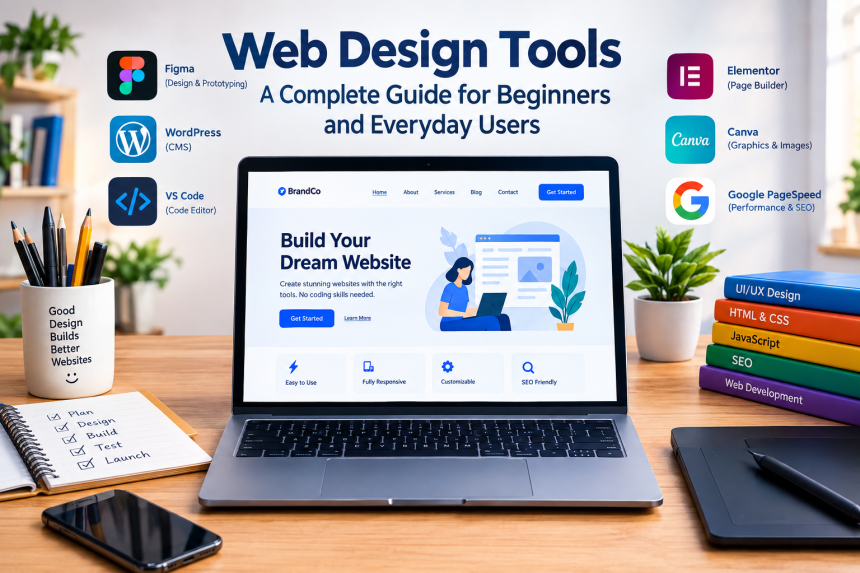
Creating a website used to feel like a job reserved for programmers and professional designers. Today, that has changed. A wide range of digital tools allows almost anyone to plan, design, build, edit, and publish a website without knowing how to write complicated code.
Whether you want to create a personal blog, launch a small business, build an online portfolio, or simply experiment with a new idea, choosing the right software can make the process much easier. But with so many options available, where should you begin?
This guide explains the major types of tools used in modern website creation, what they do, who they are suitable for, and what you should consider before choosing one.
1. What Are Web Design Tools?
Web design tools are software applications and online platforms that help people create the appearance, structure, and functionality of a website. Some focus mainly on visual design, while others help with coding, content management, images, layouts, testing, or publishing.
“Think of building a website like constructing a house—every strong website starts with a solid foundation.” You need a plan before you start, materials to build with, tools to put everything together, and ways to check whether the finished structure works properly. Website creation software provides many of those resources in digital form.
Some programs are designed for complete beginners. They may provide ready-made templates, drag-and-drop editing, and simple menus. Others are aimed at experienced users and provide detailed control over HTML, CSS, JavaScript, graphics, animations, and responsive layouts.
The best choice depends largely on what you want to accomplish.
A person creating a simple family website may need very different features from someone developing an online store or a large business platform.
2. Visual Website Builders for Beginners
Drag-and-drop platforms
Visual builders have made website creation much more accessible. Instead of writing code from scratch, users can select elements such as text boxes, images, buttons, galleries, and forms and place them on a page.
This approach is particularly useful if you are new to website development.
Many platforms provide templates covering industries such as restaurants, photography, education, consulting, retail, events, and personal portfolios. You can choose a layout that resembles your desired website and then replace the sample content with your own.
The biggest advantage is speed. You can often produce a working page in a few hours rather than spending days learning technical concepts first.
However, convenience can sometimes come with limitations. A simple builder may not give you complete control over every part of a page. Some advanced customization may require a paid plan or technical knowledge.
Who should use them?
Visual builders are particularly suitable for:
- Beginners
- Freelancers
- Small businesses
- Personal websites
- Portfolios
- Event pages
- Simple online stores
If your primary goal is to get a professional-looking website online without dealing with code, this category is worth considering.
3. Code Editors for Greater Control
Writing and editing website code
A code editor is a different type of solution. Instead of assembling a website visually, you work directly with the files and instructions that make a webpage function.
Common technologies include HTML for page structure, CSS for presentation, and JavaScript for interactive behavior.
Modern editors can make this process easier by providing features such as syntax highlighting, automatic suggestions, error detection, file management, and extensions.
For example, HTML determines what appears on the page, while CSS can control spacing, typography, colors, and positioning. JavaScript can add interactive features such as menus, calculators, animations, and dynamic content.
Learning these technologies requires more effort than using a visual builder, but it offers much more flexibility.
You are not restricted to the options provided by a particular template. You can create a design from the ground up and change individual elements precisely.
This makes coding environments especially valuable for students, developers, agencies, and anyone who wants deeper control over a project.
4. Graphic and Interface Design Software
A website is more than a collection of words and buttons. Visual presentation strongly affects how visitors perceive it.
Graphic design software can help create logos, illustrations, banners, icons, promotional graphics, and other visual elements.
Interface design applications take this a step further by allowing designers to create complete page layouts before development begins.
Why planning visually matters
Imagine asking a builder to construct a house without giving them a floor plan. They might eventually produce something usable, but mistakes and changes would be much more likely.
The same principle applies to websites.
A designer can create a visual mockup before the development stage. This makes it easier to experiment with navigation, spacing, typography, images, and page structure without changing the actual website.
Prototypes can also show how users might move from one page to another. This is useful when developing larger websites because problems can be identified before significant development time is spent.
Good design software therefore serves as a bridge between an idea and a finished digital product.
5. Templates, Themes, and Design Systems
Starting with a prepared foundation
Not everyone wants to create every part of a website from zero. Templates and themes provide a practical starting point.
A template usually contains a predefined arrangement of headings, images, navigation menus, buttons, sections, and other elements. You can then modify the content and visual style to suit your needs.
Themes are particularly common in content management systems. They can influence the overall appearance of an entire website.
Using a template does not necessarily mean producing an unoriginal website. A strong template can act as a foundation while you customize the typography, imagery, colors, content, layout, and branding.
The important thing is to avoid choosing a design simply because it looks attractive in a preview.
Ask yourself:
- Does the navigation make sense?
- Is the text easy to read?
- Does it work well on phones?
- Can important information be found quickly?
- Does the design fit the purpose of the website?
- Can you customize the sections you actually need?
A beautiful template that makes information difficult to find is not necessarily a good website design.
6. Responsive Design and Mobile Testing
Making websites work across different screens
People access websites from laptops, tablets, phones, televisions, and other devices. Screen sizes can vary dramatically.
Responsive design allows a website to adjust its layout according to the available screen space.
For example, a three-column desktop layout might become a single-column arrangement on a smartphone. Navigation might transform into a compact menu, while images resize automatically.
This matters because visitors should not have to zoom, scroll sideways, or fight with tiny buttons simply to read a page.
Modern design tools often include previews for different screen sizes. Some also provide testing features that help designers see how a page behaves at various resolutions.
Mobile-first thinking
A useful approach is to consider smaller screens early rather than treating mobile compatibility as an afterthought.
When space is limited, you are forced to focus on what matters most. Clear navigation, readable text, appropriately sized buttons, and fast-loading media become priorities.
The result can benefit desktop users too because a clean structure often works well across all devices.
7. Image, Video, and Content Tools
Visual content plays an important role in modern websites. A page containing only large blocks of text can feel difficult to explore, while carefully selected images and illustrations can make information easier to understand.
Image editing software can be used to crop photographs, adjust dimensions, remove backgrounds, create graphics, and prepare files for the web.
Compression tools are also useful because very large image files can increase loading times.
Video tools serve a similar purpose. They can help businesses create demonstrations, tutorials, product presentations, interviews, and promotional material.
However, more content does not automatically create a better website.
Every image should have a reason to exist. A decorative photograph that adds no useful information may simply distract visitors or increase page weight.
The same principle applies to video.
Before adding a large media file, ask whether it helps the visitor understand something, make a decision, or complete an action.
Accessibility also matters.
Images should have meaningful alternative text when appropriate, while videos may benefit from captions and transcripts. These practices can make websites easier to use for people with different abilities and preferences.
8. Content Management Systems
Managing information after the website is built
A content management system, often called a CMS, allows users to create, organize, edit, and publish website content through an administrative interface.
This is particularly helpful for websites that change regularly.
Instead of editing individual files every time you publish an article, a CMS can provide a dashboard where you can add a title, write content, upload media, select categories, and publish the page.
This approach is useful for:
- Blogs
- News websites
- Business websites
- Online magazines
- Educational projects
- Membership platforms
- Stores
A CMS can also support multiple users. For example, one person might write articles while another manages images and a third handles administration.
The major benefit is convenience. You can manage content without necessarily touching the underlying code.
However, CMS platforms can require maintenance. Updates, security practices, backups, extensions, and hosting configuration may all become important as a website grows.
9. Tools for Accessibility and Usability
Designing for real people
A website may look impressive while still being frustrating to use.
Usability tools help designers identify problems that may not be obvious during development.
For instance, a page might have a beautiful menu that is difficult to understand. A form may look simple but contain confusing instructions. A button may be visually attractive but difficult to notice.
Accessibility focuses on making digital experiences usable by people with different abilities, including visitors who rely on screen readers, keyboard navigation, captions, or other assistive technologies.
Useful checks can include:
- Text contrast
- Keyboard navigation
- Heading structure
- Form labels
- Alternative text
- Link descriptions
- Focus indicators
- Readable typography
- Clear error messages
You do not need to make a website complicated to make it accessible.
In many cases, simple choices produce better results for everyone. Clear language, logical navigation, readable text, and predictable interactions help both users with disabilities and visitors using the website in ordinary situations.
10. Performance, Testing, and SEO Utilities
Making sure the finished website works
Design does not end when the page looks correct.
A website also needs to function properly.
Testing tools can help identify broken links, missing resources, slow pages, layout problems, compatibility issues, and other technical weaknesses.
Performance is especially important. Visitors may leave a page if they have to wait too long for content to appear.
Several factors can influence loading speed, including:
- Large images
- Excessive animations
- Unnecessary scripts
- Poor hosting
- Too many third-party resources
- Inefficient page structures
Search-related tools can also help website owners understand how pages are discovered and interpreted by search engines.
This can involve examining page titles, descriptions, headings, links, structured information, indexing issues, and other technical details.
The key is to treat search visibility as part of a broader user experience rather than simply inserting phrases into a page repeatedly.
A useful website should first serve its visitors. When the structure is clear and the information is genuinely helpful, search optimization becomes much more natural.
11. How to Choose the Right Tool for Your Project
There is no universal solution that works perfectly for everyone.
The right choice depends on your technical experience, budget, project size, desired flexibility, and long-term plans.
For beginners, a visual builder may be the easiest starting point.
For designers, an interface and prototyping application may be more valuable because it allows detailed planning before development.
For developers, a capable code editor can provide the control needed for custom projects.
For content-focused websites, a CMS can simplify publishing and organization.
For businesses, the decision should also consider scalability, integrations, security, analytics, ecommerce capabilities, and ongoing maintenance.
Budget deserves attention as well. Some tools are free, while others operate through subscriptions, premium extensions, hosting packages, or transaction fees.
Do not choose a tool solely because it has the longest feature list.
More features can sometimes make a platform harder to understand. A simple tool that does everything you actually need may be more useful than an advanced application filled with options you will never touch.
A good rule is to begin with the project rather than the software.
Write down what you need first. Then find a tool that matches those requirements.
12. Building a Practical Web Design Workflow
The strongest results usually come from using several types of tools together rather than expecting one application to do everything.
A practical workflow might look like this:
Step 1: Define the purpose
Decide why the website exists and who will use it.
Step 2: Organize the information
Create a basic sitemap and decide what pages are required.
Step 3: Plan the layout
Use sketches, wireframes, or interface prototypes to determine how the pages should work.
Step 4: Create the visual identity
Select typography, imagery, logos, icons, and other visual elements.
Step 5: Build the website
Use a visual platform, CMS, or coding environment to turn the plan into functional pages.
Step 6: Test different devices
Check desktop, tablet, and smartphone layouts.
Step 7: Test usability
Ask whether visitors can easily find information and complete important tasks.
Step 8: Improve performance
Compress media, remove unnecessary resources, and address technical problems.
Step 9: Check accessibility
Review contrast, keyboard operation, text alternatives, forms, headings, and other accessibility considerations.
Step 10: Publish and maintain
After launch, continue monitoring the website, updating content, fixing problems, and improving the experience.
This workflow can be compared to preparing a meal. Planning the recipe, gathering ingredients, cooking, tasting, and serving are separate stages, but they all contribute to the final result. Website creation works in much the same way.
Conclusion
Web design tools have made website creation far more approachable than it once was. Whether you prefer visual editing, coding, templates, content management, graphic design, or a combination of several approaches, there is a solution for almost every level of experience.
The most important thing is not choosing the tool with the most impressive feature list. It is choosing one that fits your goals and helps you create a website that is useful, accessible, attractive, responsive, and easy to maintain.
Start with what your visitors need, understand what your project requires, and then select the technology that supports those goals. The right tools should make the process easier—not become the project themselves.
Frequently Asked Questions
1. What are web design tools used for?
They are used to plan, design, build, edit, test, and maintain websites. Different tools focus on different tasks, such as visual layouts, coding, image editing, content management, prototyping, or performance testing.
2. Can beginners create websites without coding?
Yes. Visual website builders and content management systems allow beginners to create many types of websites without writing code. However, learning basic HTML and CSS can provide additional flexibility as your skills develop.
3. Which tools are useful for responsive websites?
Responsive design features, device previews, browser testing utilities, and flexible layout systems can all help. The important goal is to make sure the website remains readable and usable across different screen sizes.
4. Why is website testing important?
Testing can reveal broken links, slow pages, mobile layout problems, accessibility issues, browser compatibility errors, and confusing navigation. Fixing these issues can create a smoother experience for visitors.
5. Should I use one tool or several tools?
It depends on the project. A simple website may be manageable with one platform, while a larger project may benefit from separate tools for planning, visual design, development, content management, testing, and performance improvement.